Bacardi Play App Login and Verification Errors on Android
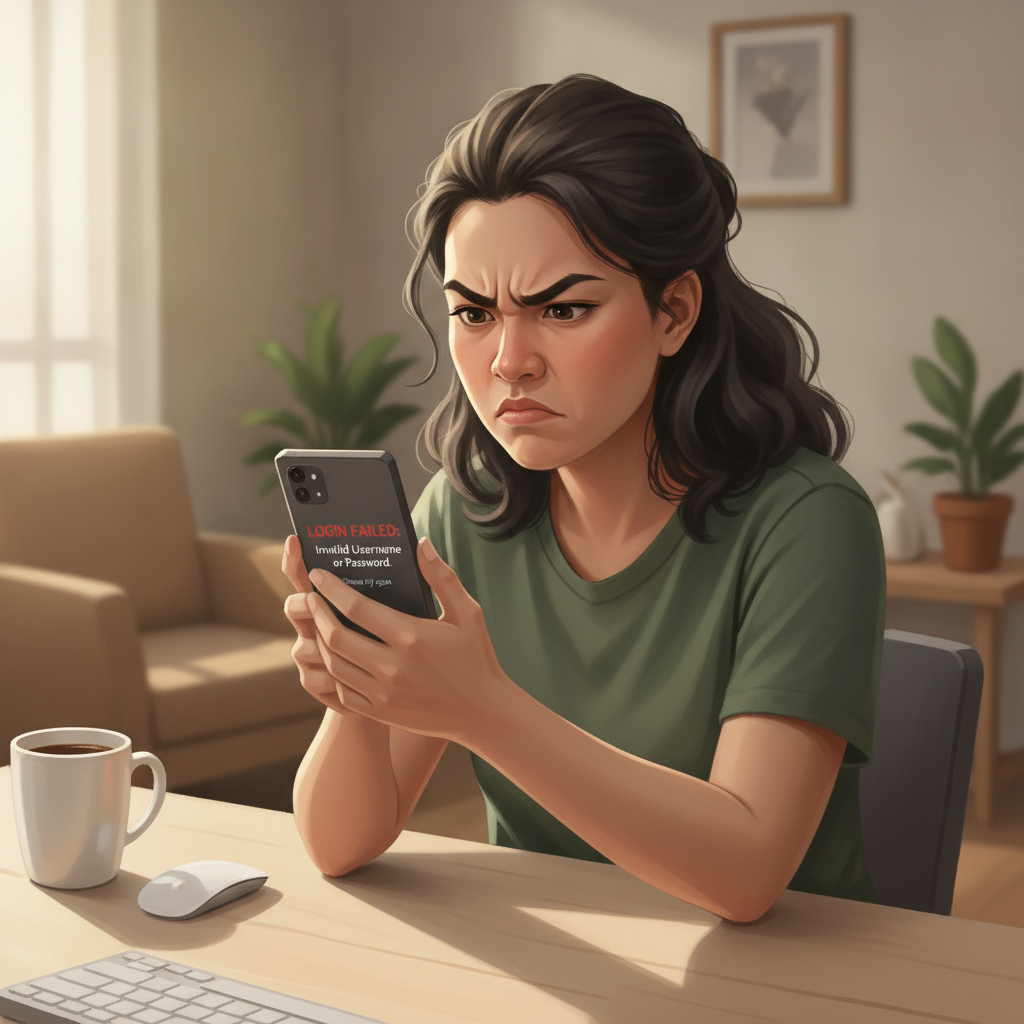
Error Messages During App Login: Network Issues, Outdated APK, Server Downtime
When players open the Bacardi Play app on Android and tap the login button, several error messages can prevent access. The most common issues fall into three categories: network problems, outdated app versions, and temporary server downtime.
Network connection errors typically display messages like "Unable to connect" or "Check your internet connection." Even with mobile data or Wi-Fi enabled, weak signal strength or unstable connections can block login attempts. Players in Metro Manila or the provinces switching between cellular towers or using prepaid data with low load balance may see intermittent failures. Testing the connection by opening a browser and visiting any website confirms whether the issue lies with the device's internet access or the Bacardi Play app itself.
Outdated APK warnings appear when the installed version of the Bacardi Play app no longer matches the operator's current release. The app may show "Please update to continue" or simply refuse to load past the splash screen. Because Bacardi Play distributes its Android app as a direct APK download rather than through Google Play, automatic updates do not occur. Players must manually download the latest APK from the official Bacardi Play site whenever the operator pushes an update—sometimes weekly, sometimes after several weeks. Checking the version number in the app's settings menu against the version listed on the download page reveals whether an update is needed.
Server downtime or maintenance occasionally prevents all login attempts, regardless of the player's device or internet connection. During scheduled maintenance—often announced in advance through SMS or email—the Bacardi Play app may display "Service temporarily unavailable" or loop endlessly on the login screen. Unscheduled outages due to technical issues produce the same symptoms. No player-side troubleshooting will resolve server-side problems; the only option is to wait for the operator to restore service. Most maintenance windows last one to three hours, typically during early morning hours Philippine Standard Time when traffic is lowest.
ID or Selfie Verification Failures in the Mobile App
Bacardi Play requires ID and selfie verification to comply with anti-money-laundering rules and confirm player age (21+ only). While many players complete verification smoothly, the mobile app sometimes rejects documents or photos, blocking access to withdrawals and certain features.
ID photo rejections happen when the uploaded image is blurry, cropped too tightly, or reflects glare from overhead lighting. The app's camera interface on Android devices does not always provide clear focus indicators, so players may submit unreadable images of their government-issued ID (UMID, driver's license, passport, or Postal ID). Each rejection delays the verification process by hours or days, depending on the support team's response time. To improve acceptance rates, players should photograph their ID on a flat, contrasting surface (dark ID on light background, or vice versa) in natural daylight rather than under fluorescent bulbs. All four corners of the ID must appear in the frame, and text should be sharp enough to read when zoomed in.
Selfie verification failures occur when the player's face is partially obscured, poorly lit, or does not match the ID photo closely enough. The Bacardi Play app asks players to hold their ID next to their face while taking a selfie, a pose that can feel awkward and result in off-center framing or shadow across the ID. Some Android devices default to front-camera beauty filters or wide-angle lenses that distort facial features, causing automated or manual reviewers to flag a mismatch. Disabling filters in the camera settings and ensuring even lighting from the front (not backlit by a window) reduces rejection rates. The player's entire face and the full ID card must both be in focus within the same shot.
Document mismatch errors arise when the name, birthdate, or address on the uploaded ID does not exactly match the information entered during account registration. A single typo in the registration form—"St." versus "Street," or a middle initial included on the ID but omitted in the app—can trigger a verification hold. Bacardi Play's system flags these discrepancies for manual review, adding processing time. Players who realize they entered incorrect details should contact support through the app's live chat before uploading documents, to update the registered information first.
Clearing Cache, Reinstalling APK, and Checking Permissions
When login or verification errors persist, three Android-level troubleshooting steps often resolve the issue: clearing the app cache, reinstalling the APK, and reviewing app permissions.
Clearing the cache removes temporary files that the Bacardi Play app stores on the device. Corrupted cache data can cause login loops, blank screens after entering credentials, or failed image uploads during verification. To clear cache on Android, open Settings > Apps > Bacardi Play > Storage, then tap Clear Cache (not "Clear Data," which erases saved login credentials). This process takes a few seconds and does not delete the player's account or balance; it only wipes locally stored session files. After clearing cache, close the app completely using the Recent Apps menu, then reopen it and attempt to log in again.
Reinstalling the APK provides a fresh installation when cache clearing does not help. Before uninstalling, note the current login username and password, as the app will not remember them after reinstallation. Go to Settings > Apps > Bacardi Play > Uninstall and confirm. Then navigate to the official Bacardi Play download page in a mobile browser (Chrome or Firefox), download the latest APK, and tap the downloaded file to install. During installation, Android may warn "Install unknown apps"—tap Settings in the prompt, enable installation from that browser, then return and tap Install. Once installed, open the app and log in with the saved credentials. Reinstalling often fixes version mismatches, corrupted files, or broken dependencies that cause crashes or verification upload failures.
Checking app permissions ensures Bacardi Play has access to the camera, storage, and network features it needs. If the app cannot access the camera, the selfie verification step will fail silently or display a generic error. Navigate to Settings > Apps > Bacardi Play > Permissions and confirm that Camera, Storage, and Phone (for network state) are all set to "Allow." Some Android skins (MIUI, ColorOS, One UI) add extra permission layers or battery optimization settings that kill background processes. Disable battery optimization for Bacardi Play by going to Settings > Battery > App Battery Usage > Bacardi Play and selecting "Don't optimize" or "No restrictions." This prevents the app from being force-closed mid-verification or during login.
When to Switch to Mobile Browser Login as a Workaround
If app-based login remains broken after clearing cache, reinstalling, and checking permissions, switching to the Bacardi Play mobile website offers a temporary workaround. The mobile browser version provides nearly identical functionality—slots, live dealer tables, sports betting, GCash deposits and withdrawals—without requiring APK management or app permissions.
Opening the mobile site is straightforward: launch Chrome, Firefox, or the default Android browser, navigate to the official Bacardi Play URL, and tap the login button at the top right. Enter the same username and password used in the app. The mobile site works on any Android device with a modern browser, even older phones that struggle to run the latest APK. Players who encounter persistent "outdated APK" errors or installation conflicts with custom Android ROMs can rely on the browser version indefinitely.
Completing verification in the browser is possible if the app's camera or upload interface fails. The mobile website's verification section allows players to upload ID and selfie photos from the device's gallery rather than capturing them in real time through the app. This flexibility lets players take photos using the native camera app—which typically has better focus, exposure, and resolution controls—then upload the saved images through the browser. For players who have already taken clear ID and selfie photos but cannot submit them via the app, the browser route bypasses app-specific bugs.
Performance and data usage differences between the app and mobile browser are minimal. The browser version loads slightly slower on weak 3G connections because it fetches page elements on demand, while the APK caches certain assets locally. However, both consume similar amounts of mobile data during active play—roughly 10 to 30 MB per hour of slots or live dealer sessions, not counting large game assets downloaded on first launch. Players on limited prepaid data plans will not see a major increase by switching to the browser.
When to return to the app: Once the operator releases a new APK version or announces that server issues are resolved, players can reinstall the app and attempt login again. Some features, such as push notifications for bet results or promo alerts, work only in the installed app, not the browser. But for urgent needs—placing a bet before a PBA game tips off, cashing out via GCash after a win, or completing delayed verification—the mobile browser keeps gameplay uninterrupted.
21+ Only, Gamble Responsibly
Bacardi Play is available only to players aged 21 and above. Gambling involves risk, and no strategy guarantees profit. Set a budget in pesos before playing, never chase losses, and use GCash or Maya deposit limits to stay in control. If gameplay feels compulsive or stressful, take a break and seek support. Responsible gambling keeps the experience recreational and sustainable.